



What to Do If Mazda Audio System Isn’t Working
You turn the key, ready for your morning commute, and silence greets you instead of your favorite playlist. When your Mazda’s audio system stops working, it disrupts more than just entertainment. It affects navigation alerts, phone calls, and your overall driving experience. At Kiefer Mazda, we’ve helped countless Eugene, Oregon drivers resolve audio system issues, and we’re here to walk you through solutions that range from simple setting adjustments to complex electrical problems. While many common audio failures have straightforward DIY solutions, our certified technicians stand ready to help when problems require professional diagnosis. If quick checks don’t resolve your issue, contact our service department for expert assistance.
Quick Diagnostic Checks Before Troubleshooting
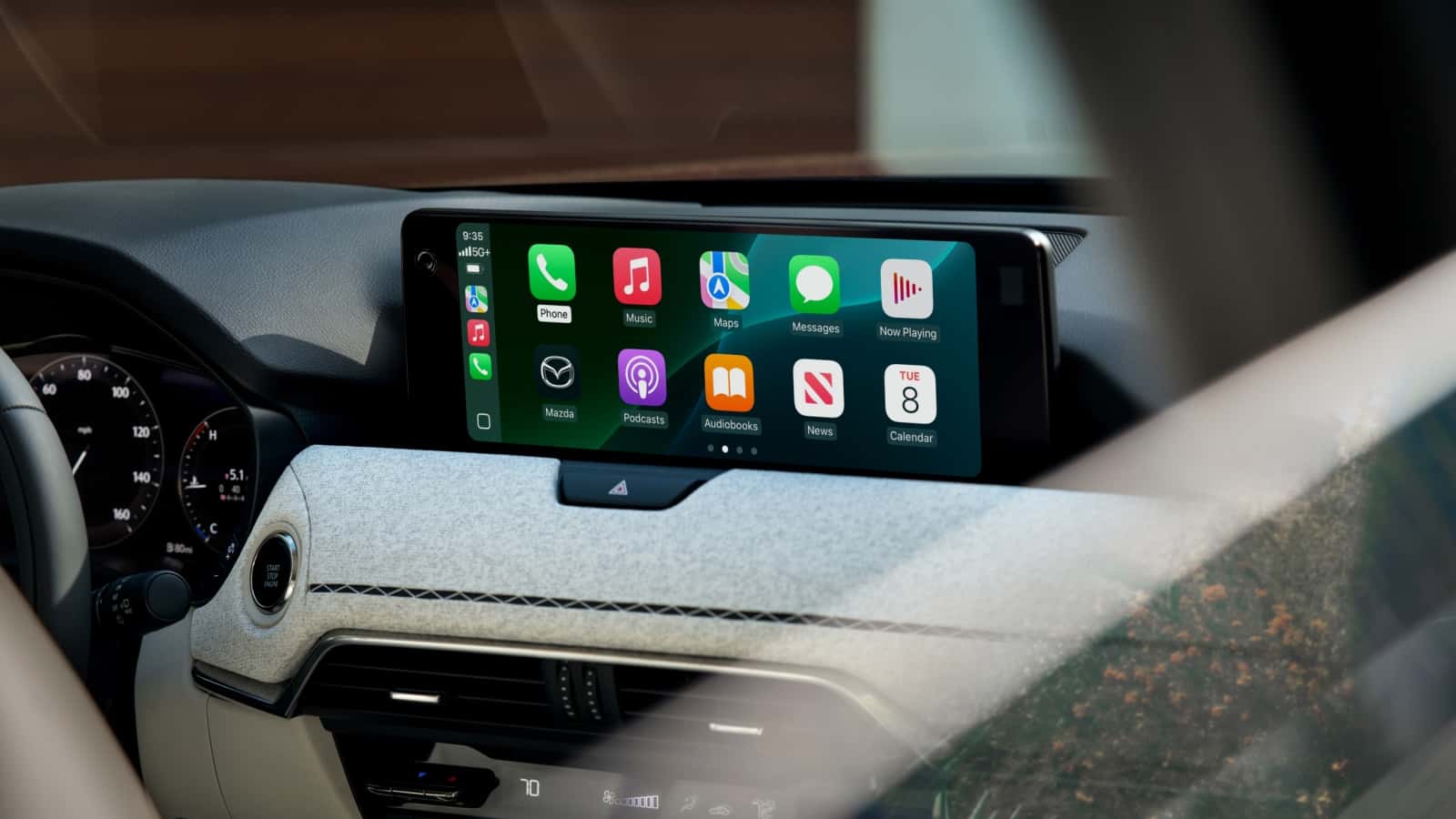
Verify Settings and Physical Connections
When wondering why your audio isn’t working, start with the basics. Check that the volume isn’t muted and that balance and fade controls haven’t been accidentally adjusted to send all audio to one corner. This happens more often than you’d think when passengers explore the touchscreen or during center console cleaning.
Physical connections deserve equal attention. A loose wiring connection or blown fuse can silence your system completely. Find your fuse box (usually underneath the dashboard on the driver’s side) and check fuses labeled for audio or infotainment. A blown fuse looks darkened or shows a broken metal strip inside the clear housing. Replacing a blown fuse might restore functionality immediately. Use a fuse puller and replace damaged fuses with the exact same amperage, consulting your owner’s manual for specific locations.
If your infotainment screen won’t turn on or stays black, these symptoms often point to power supply issues rather than just audio problems. Check your battery connections and make sure the ignition is fully engaged. Some Mazda models require the engine running for the infotainment system to power on completely.
Common Mazda Audio Problems and DIY Fixes
No Sound or Distorted Audio Issues
Complete audio silence represents one of the most frustrating problems drivers encounter. When your system produces no sound whatsoever, test whether it registers input by adjusting the volume controls. If the volume indicator on your screen responds but produces no sound, the head unit functions while something downstream blocks the audio signal.
Distorted audio usually indicates speaker damage or electrical interference. Test the system at various volume levels. Distortion that gets worse at higher volumes typically points to blown speakers. Consistent distortion regardless of volume suggests interference from other electrical components or a ground wire issue. Check whether all speakers produce distortion or just specific ones.
Sound coming from only one side might seem like speaker failure but frequently results from incorrect balance settings. Navigate to your audio settings and verify the balance slider sits centered. If balance appears correct but sound remains one-sided, wiring to the affected speakers likely needs inspection.
Volume Control and Balance Problems
Unresponsive volume controls create safety concerns beyond inconvenience. Software glitches occasionally cause the volume system to freeze at a particular level, ignoring both dial controls and steering wheel buttons. Clean around the control area using compressed air to remove debris blocking sensors. For steering wheel controls that don’t respond, check whether other steering wheel functions work properly.
Balance and fade problems that persist despite resetting audio settings might indicate amplifier or head unit issues sending unbalanced signals to speakers. This typically requires diagnostic equipment to measure actual output reaching each speaker, which is when we recommend scheduling service with our technicians.
How to Reset Your Mazda Infotainment System
Soft Reset and Factory Reset Methods
A soft reset addresses temporary software glitches without erasing saved settings, making it the preferred first approach. To perform a soft reset on Mazda Connect systems in 2020+ models (CX-5, CX-30, CX-50, CX-90, Mazda3), press and hold the Mute, Nav, and Back buttons located around the Multifunction Commander Control knob for at least 10 seconds. The screen turns off, then displays the Mazda logo as the system restarts. You’ll see this confirmation within moments of releasing the buttons.
Wait a full minute after the system reboots for all background processes to initialize before testing audio functionality. Some drivers report that audio issues return if they immediately use the system before initialization completes.
Factory resets become necessary when soft resets fail. Access Settings menu on your infotainment screen, select System, then choose Restore Factory Settings and confirm the reset. The system reboots automatically after completion. Before initiating this reset, back up contacts and navigation settings, as the process erases all personalized configurations. Consider photographing your current settings screens to help restore your preferred setup afterward.
If system resets don’t resolve your audio problems, our certified technicians at Kiefer Mazda have specialized diagnostic tools to identify deeper software or hardware issues. Schedule service for persistent problems that DIY resets cannot fix.
Fixing Bluetooth and Connectivity Issues
Re-Pairing Devices and Resolving Audio Dropouts
Bluetooth connectivity problems account for many perceived audio system failures. To reset Bluetooth, start by deleting all existing phone pairings. Go to Settings menu, select Bluetooth, then remove all paired devices from your Mazda system. Do the same deletion on your phone by navigating to its Bluetooth settings and removing your Mazda from paired devices. Turn off your vehicle and restart it. Return to Bluetooth settings and follow the pairing process for your phone.
With both systems cleared, restart your phone completely before establishing a new pairing. This fresh start eliminates profile corruption that develops when software updates occur on either device. Pair only one device initially, as multiple saved pairings can conflict when several phones remain within Bluetooth range simultaneously.
Audio dropouts during streaming usually indicate signal interference or outdated firmware. Keep your phone in the center console or front cup holder rather than in a back pocket or rear seat. Check whether your Mazda Connect system has pending firmware updates that address Bluetooth compatibility issues.
Mazda Audio Software Updates and Maintenance
Software updates improve system stability, enhance Bluetooth compatibility, and fix known audio glitches. Check for available updates by tapping Settings on your infotainment screen, navigating to System, then selecting Software Update. Connect to Wi-Fi and follow on-screen instructions. The MyMazda app also provides vehicle health reports with real-time performance updates.
Regular maintenance includes periodic cleaning of your touchscreen and control surfaces. Fingerprints and dust can interfere with touch responsiveness. Use a microfiber cloth slightly dampened with screen-safe cleaner to gently wipe the display. Avoid harsh chemicals or excessive moisture.
Keep your vehicle’s battery in good condition to protect your audio system from voltage-related problems. Weak batteries sometimes provide insufficient power, resulting in dim screens, slow response times, or audio that cuts out intermittently. In Eugene’s Pacific Northwest climate, battery performance can be affected by moisture and temperature fluctuations, so periodic fuse and wiring inspections help prevent issues.
Note that procedures described here apply to Mazda Connect systems found in current new vehicles, while older Mazda models may have different system configurations requiring alternative approaches.
When to Schedule Service at Kiefer Mazda
Despite thorough troubleshooting, some audio problems require professional diagnostic equipment. Here’s when to contact us:
Complete System Failure
Complete silence after checking fuses, verifying settings, and performing resets indicates internal component failure. Amplifier malfunctions don’t produce obvious external symptoms but completely prevent audio output. We can test amplifier output voltage and identify whether repair or replacement is necessary.
Wiring and Electrical Issues
Complex wiring problems exceed DIY capabilities, particularly circuits behind the dashboard or within door panels. If sound cuts out randomly or specific speakers stop working despite proper settings, damaged wire harnesses or corroded connections need professional attention.
Software Recovery Problems
Failed software updates can leave your infotainment system unstable. We have access to specialized recovery tools and firmware versions not available to the public, allowing us to restore functionality when consumer-level fixes prove insufficient.
Warranty Considerations
For vehicles under warranty, attempting certain repairs yourself may void coverage. We recommend professional service for newer vehicles to preserve warranty protection while ensuring repairs use genuine Mazda parts and factory-trained expertise.
Contact Kiefer Mazda Service
Our service department at 383 Goodpasture Island Rd in Eugene specializes in Mazda infotainment system problems. Call (855) 207-3411 Monday through Friday from 7 AM to 5:30 PM or Saturdays from 8 AM to 4 PM to schedule your appointment. We provide initial phone assessments and minimize your vehicle’s downtime. If audio problems coincide with other electrical issues or warning lights, bring your vehicle in promptly, as this suggests interconnected failures requiring comprehensive diagnosis.
Understanding what to do if your Mazda audio system is not working empowers you to resolve many common issues independently while recognizing when professional help becomes necessary. Start with simple diagnostic checks, work through troubleshooting steps systematically, and document what you’ve tried to help our technicians if you need assistance. As a backup solution when your main system fails, remember that Bluetooth connectivity can still provide audio until repairs are completed.
Image courtesy of Mazda USA
0 comment(s) so far on What to Do If Mazda Audio System Isn’t Working