



How to Reset Mazda Screen
Your Mazda’s infotainment system handles navigation, audio, phone connectivity, and vehicle settings, all flowing through a single touchscreen. When it freezes, goes black, or stops responding, even a routine commute gets frustrating fast. The good news is that most of these problems are fixable without a service appointment.
If you’d prefer to have a professional take a look from the start, our service department is always available to help. Otherwise, this guide covers every reset method, from a quick soft restart to a full factory reset, so you can get back on the road with a system that actually works.
Why Your Mazda Screen May Need a Reset
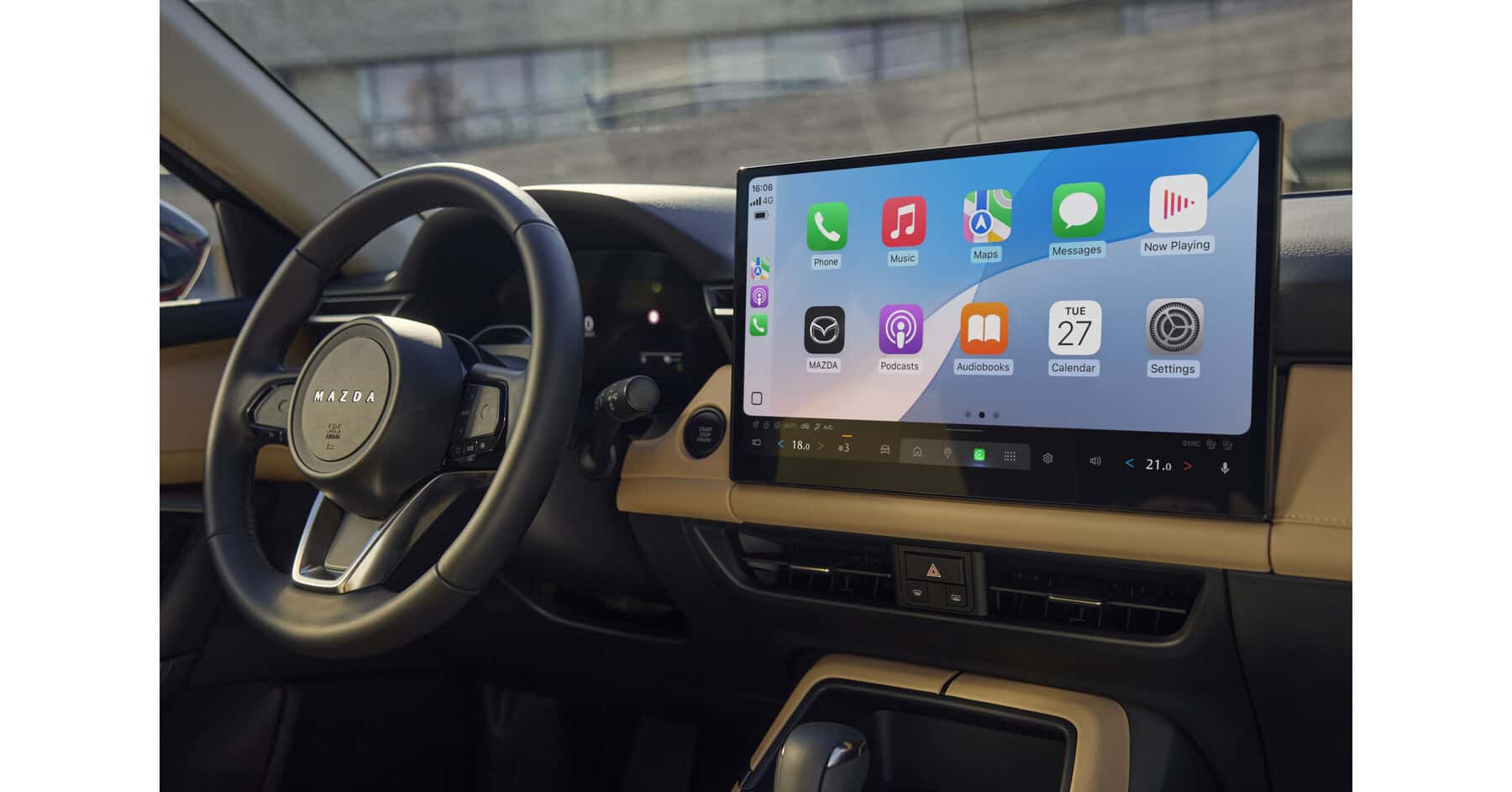
Understanding what’s going wrong helps you pick the right fix. Like any computer-based system, the infotainment unit runs on software, and software occasionally hits bugs or conflicts. Most of the time, the cause is pretty minor.
Outdated firmware is one of the most common culprits. When the system falls behind on updates, it can behave erratically, especially after connecting new devices or using apps that depend on current protocols. Heat is another factor; excessive cabin temperatures during summer can cause the system to lag or become unresponsive. Rapidly switching between Bluetooth devices, or having too many paired at once, can also create conflicts that make the screen stop cooperating.
Corrupted files or a failed software update can leave the system stuck in a boot loop or produce a display that won’t load. Physical damage to internal components is a different situation entirely and typically requires professional diagnosis rather than a DIY fix.
Soft Reset: The Fastest Way to Reset Your Mazda Screen
This is always the first thing to try when your screen is frozen, unresponsive, or acting strange. It’s quick, non-invasive, and won’t erase any saved settings.
Restarting Your Vehicle to Refresh the Display
According to Mazda’s official guidance, the primary soft reset method is simply turning the vehicle off and back on again. Turn the engine off completely, wait about 60 seconds, then restart. This gives all onboard systems, including the infotainment module, time to fully power down and reinitialize. It works especially well when the display stalls after startup or stops responding after a period of inactivity.
Using the Power/Volume Knob
If a vehicle restart doesn’t resolve the issue, press and hold the Power/Volume knob on the center console for approximately 10 seconds until the screen powers off, then press it again to bring the system back up.
This can help when the display freezes mid-screen or when Apple CarPlay and Android Auto become unresponsive. Steps may vary by model year, so check your owner’s manual if this doesn’t match your vehicle’s layout.
Hard Reset: How to Fix Persistent Mazda Screen Problems
When a soft reset doesn’t cut it, a hard reset forces the infotainment unit to restart at a deeper level, clearing corrupted processes and resetting the system’s operational state. This is the go-to fix when your screen stays frozen after multiple soft restarts or keeps cycling through error states.
Step-by-Step Hard Reset Instructions for Mazda Infotainment
The button combination may vary by model and year, so verify against your owner’s manual before proceeding.
- Make sure the vehicle is in park with the engine running or in accessory mode (ACC).
- Press and hold the Mute button, the Nav button, and the Back button simultaneously.
- Hold all three buttons for approximately 10 seconds until the screen goes dark.
- Release the buttons and wait for the system to reboot on its own.
For 2021 and newer models running Mazda Connect, you may find a dedicated restart option within system settings rather than a button combination. For older models running MZD Connect, the button combination above is typically the right approach.
What a Hard Reset Resolves (and What It Won’t)
| Fixes | Won’t Fix |
| Persistent screen freezing | Hardware damage or physical cracks |
| Unresponsive touch inputs | Internal module faults |
| Failed app integrations | Corrupted files requiring a software update |
| Intermittent display blackouts | Issues needing professional diagnostics |
Factory Reset: Restoring Your Mazda Infotainment to Default Settings
A factory reset is the most thorough option available. It wipes the infotainment system back to its out-of-the-box state, removing all paired devices, saved preferences, navigation history, and personalized settings. Use it deliberately.
When a Factory Reset Is the Right Solution
This makes sense when recurring glitches haven’t responded to either a soft or hard reset. It’s also the right call before selling or transferring ownership of the vehicle, since it clears your paired phones, saved addresses, and personal data. If the issue continues after a factory reset, that likely points to a hardware fault requiring professional diagnosis.
What to Back Up Before You Reset
Before starting, record the following manually. There’s no cloud backup built into the standard Mazda infotainment system, so once it’s gone, it’s gone:
- Radio presets
- Paired Bluetooth devices
- Navigation favorites, home, and work addresses
- Custom audio and display settings
How to Perform a Mazda Infotainment Factory Reset
The steps below apply to most current Mazda models. Check your owner’s manual to confirm, as steps can vary by model year.
- Start the vehicle and allow the infotainment system to fully load.
- Tap the Home button and navigate to Settings.
- Select System.
- Select Restore Factory Settings.
- Confirm the action when prompted. The system will restart and restore default configurations.
The process typically takes a few minutes. Once complete, you’ll need to re-pair all Bluetooth devices and reconfigure audio, display, and navigation preferences from scratch.
Additional Mazda Infotainment Troubleshooting Tips
A few simple habits can prevent problems from coming back after a reset.
Updating Your Mazda Infotainment Software
Software updates are among the most effective long-term fixes for infotainment problems. Mazda releases periodic firmware updates that address bugs, improve performance, and add compatibility upgrades for connected devices. Running outdated software raises the risk of crashes, connectivity failures, and sluggish touch response.
To update, use Mazda Toolbox, Mazda’s official software update tool. Download it from Mazda’s official website and follow the prompts to download the update to an SD card (you’ll need roughly 10GB of computer storage). Install it directly through the infotainment menu.
Some model years also support USB-based updates; check the official Mazda resources or your owner’s manual to confirm which method applies to your vehicle. Don’t use third-party download sites or forums. A Kiefer Mazda service advisor can also check your system’s software version and handle updates during a routine service visit.
Re-Pairing Bluetooth Devices
Bluetooth issues are among the most common complaints and are usually straightforward to fix. Start by deleting the affected device from both the infotainment system and your phone’s Bluetooth settings, then re-pair from scratch. This clears outdated connection data that causes pairing failures or audio dropouts.
To manage paired phones post-reset, navigate to Settings > Devices. Select the problematic device and choose Delete Device. After clearing saved pairings, restart the vehicle and initiate a fresh connection.
When It’s Time to Let a Mazda Technician Take a Look
Soft resets, hard resets, and factory resets cover the vast majority of infotainment issues. But some problems run deeper than any menu-based fix can reach.
If your screen goes black and stays black after multiple reset attempts, the display unit itself may have a hardware fault. A system that repeatedly crashes right after a successful factory reset, or touch inputs that remain completely unresponsive on a freshly initialized screen, are signs of a component-level issue. Wiring problems, failed internal modules, or damage to the infotainment controller all fall outside the scope of user-serviceable repairs.
Our technicians in Eugene have the diagnostic tools and certified training to identify these issues accurately. You can schedule service at Kiefer Mazda online at your convenience. If you have questions before booking, feel free to contact us directly.
Mazda Screen Reset: Quick Troubleshooting Reference Chart
| Issue | Recommended Fix | Data Loss Risk | Time Required |
| Frozen screen | Vehicle restart or Power/Volume knob (hold ~10 seconds) | None | Under 2 min |
| Black/no display | Vehicle restart; check fuses | None | Under 5 min |
| Sluggish/unresponsive | Vehicle restart or software update | None | Varies |
| Constant crashes | Hard reset | Minor (audio presets) | Under 5 min |
| Post-battery change | Restart vehicle and re-pair devices | None | Under 5 min |
| Embedded glitch unresponsive to other methods | Factory reset | All customizations | Several minutes |
Start with the least invasive option and work your way up. It saves time and keeps your preferences intact for as long as possible.
Ready for a Fresh Start? Explore New Mazda Vehicles at Kiefer Mazda
If your current Mazda’s infotainment system is aging out of software support or consistently causing problems that repairs can’t fully resolve, it may be worth considering an upgrade. Newer Mazda models come with the latest generation of connected technology, including improved display responsiveness, expanded app integration, and more reliable Bluetooth performance.
Browse Kiefer Mazda’s selection of new Mazda vehicles online and find a model that fits your lifestyle. Then come visit us in Eugene to experience the features in person and schedule a test drive. We’d love to help you find your next vehicle.
Image courtesy of Mazda USA
0 comment(s) so far on How to Reset Mazda Screen